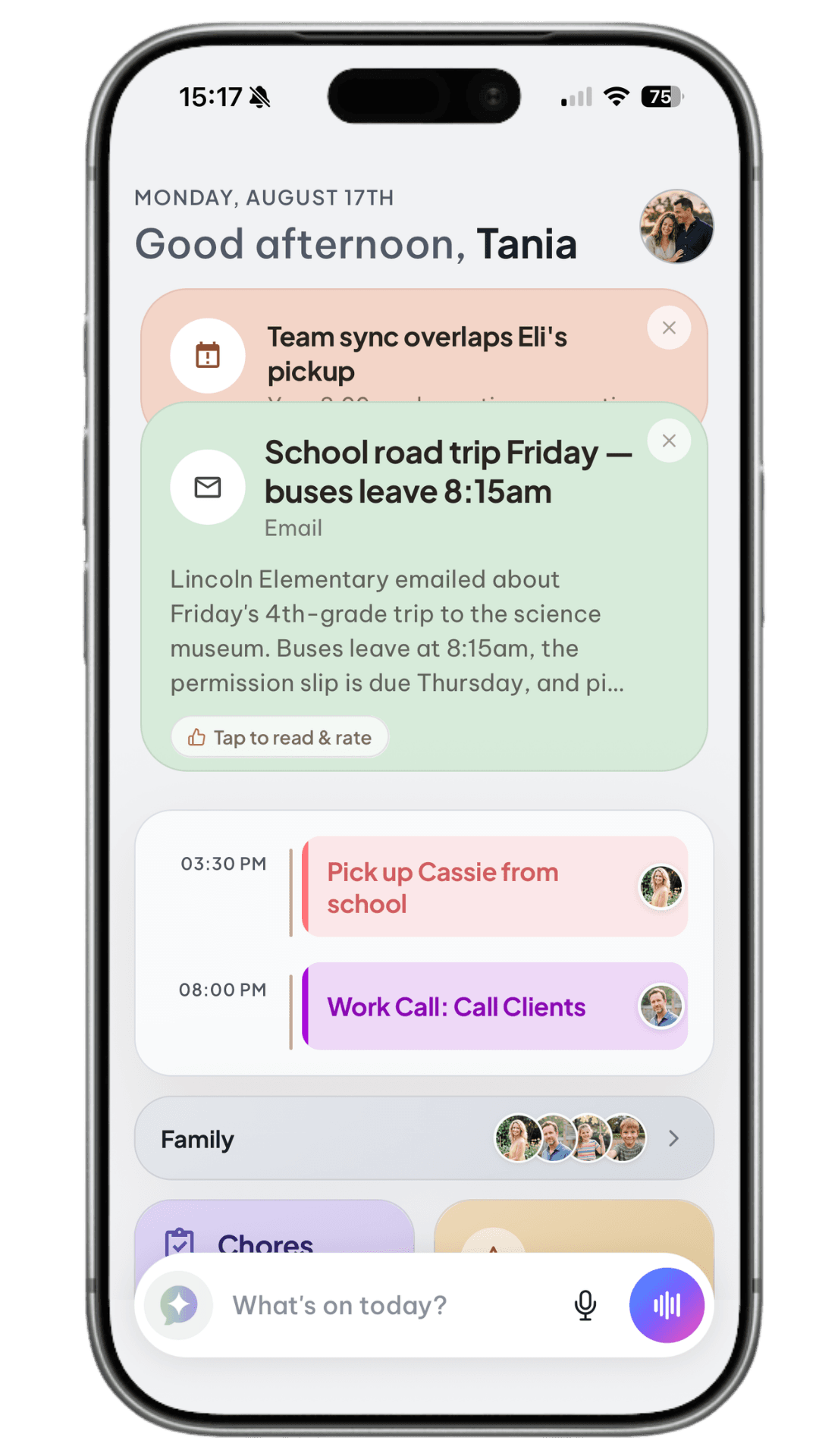
🎯 Order Now — Get your device in 2-3 weeks!
Order Now

Kora Quickstart Guide

Everything you need to get your Kora family assistant up and running in minutes.

1. Getting Started

Welcome to the Kora Family — and thank you for being one of our very first members! 🌟

Our vision is simple but powerful: to build an AI system that transforms family life — saving time, reducing stress, and making daily routines easier and more joyful for everyone.

We’re building Kora for you, and with you. Your feedback means the world to us, and we’re always here to help.

📩 Reach us anytime at support@korahome.ai or message us on Instagram (@korahome.ai) — we’ll respond within 24 hours.

Before logging in on your device, please set up your Kora AI Account on your phone first.

⚠️ Note: At the moment, Kora supports one shared family account. If other family members want to use the phone app, they should log in using the same email and password. Multi-account login will be supported in future updates.

2. Download the Kora Phone App

You can manage your Kora device anytime using our mobile web app.

📱 iPhone

  1. Open Safari and go to app.korahome.ai
  2. Tap the Share button (square with an ↑ arrow)
  3. Select “Add to Home Screen”
  4. Tap Add in the top-right corner
  5. Kora will now appear on your Home Screen like a native app.

🤖 Android

  1. Open your browser and go to app.korahome.ai
  2. Tap the menu button (⋮)
  3. Select “Install app” or “Add to Home Screen”
  4. Confirm to add
  5. You’ll now see the Kora icon on your home screen.

3. Create Your Account

  1. Tap “Don’t have an account? Sign up”
  2. Follow the prompts to create your family account

💡 You can also log in anytime from your computer at app.korahome.ai.

4. Setting Up Family Members

Each person in your household should have their own family profile inside Kora. To add a family member:

  1. Open the Kora app
  2. Tap Profiles (bottom-right corner)
  3. Tap the + button
  4. Fill in their name, details, and upload a picture

All updates made on your phone will sync instantly with your Kora Display device.

5. Syncing Your Calendars

Kora can sync Google, Apple, or any calendar that provides an ICS link, for each family member.

  1. Tap Profiles → select the family member
  2. Tap Manage Calendar Feeds
  3. Paste their ICS link into the field
  4. Kora will start syncing within 15 minutes

Remember:

Each calendar feed you add must belong to a single family member profile. All events from that calendar will automatically appear under that person in your Kora account. After a calendar is associated with a family member, it can’t be reassigned, so double-check that you’re syncing the right calendar to the right person before confirming.

🔍 How to Find Your ICS Link

Google Calendar (Computer Only)

  1. Visit Google Calendar on your computer
  2. Hover over your calendar name → click ⋮ → Settings and sharing
  3. Scroll to Integrate calendar
  4. Copy the Secret address in iCal format (starts with https://)

Apple Calendar (iPhone or iPad)

  1. Open the Calendar app
  2. Tap Calendars → ⓘ (Info) next to your calendar
  3. Turn on Public Calendar
  4. Tap Share Link → Copy (link starts with webcal://)
  5. Paste the link into Kora’s calendar settings, and syncing will begin automatically.

Important Notes on Calendar Sync

  • Manage calendar connections from the phone app only — the Kora display syncs and shows events but can’t configure feeds.
  • Kora supports one-way syncing. Events you add on the device or app won’t push back to Google, Apple, or other calendars.
  • Any service that offers an ICS link — like TeamSnap or other public calendars — can sync with Kora using this method.
  • Calendar feeds refresh every 15 minutes to keep your family schedule up to date.
  • Syncing happens on the Kora device itself. Give it a little time after adding a feed for events to appear on the display.

6. Setting Up Your Kora Display Device

Your device has already been pre-configured. When powered on, it will automatically launch the Kora Home experience. You’re ready to go!

Connecting to Wi-Fi

Once your Kora device is plugged in and has finished booting up, you’ll see the desktop screen with two icons:

  • Kora
  • Settings

To connect your device to Wi-Fi:

  1. Tap the Settings icon on the desktop.
  2. Select Network & InternetWi-Fi.
  3. Choose your home network and enter your password.
  4. Once connected, tap the circle icon (the small white dot at the bottom center of the screen) to return to the desktop.
  5. Tap the Kora icon to launch the Kora experience.

💡 Tip: If you’re already inside the Kora app and need to return to the desktop:

  1. Swipe up from the bottom of the screen to reveal the Android navigation bar.
  2. Tap the circle icon to go back to the desktop, where you’ll find the Settings icon.

Once Wi-Fi is set up, your device will automatically reconnect every time it powers on.

7. Finish Account Setup on Your Device

After the display finishes booting, take a moment to confirm everything is ready to go.

  1. Create and complete your family profiles in the phone app first — that’s where all profile management lives.
  2. Use the same family login on the Kora display that you use in the phone app.
  3. Once signed in, Kora will mirror your family’s profiles, calendars, lists, and more on the display automatically.

If you ever update profiles or settings on your phone, your display will reflect those changes as soon as it syncs.

8. Managing Events, Chores, Rewards, and Lists

You can manually add items anytime — on the device or app — even without AI commands.

📅 Calendar

Tap + in the Calendar tab → fill in event details → assign to one or more family members.

🧹 Chores

Tap + in the Chores tab → set Priority, Points, Repeat pattern, and Due date. Points help motivate family members and can be redeemed for rewards.

🎁 Rewards

Tap + in the Rewards tab → set Requirements, Point Goals, Recurrence, and Notes.

🛒 Lists (Grocery & To-Do)

Tap + in the Lists tab → add grocery or task items. You can order groceries directly with Instacart by tapping “Order with Instacart.”

9. Using Kora’s AI

💡 Basic AI

You can type or speak commands by tapping the microphone icon. Try saying or typing:

  • “Add an event to [Name’s] calendar for 2 PM tomorrow.”
  • “Add milk to my grocery list.”
  • “Add a to-do item to review the kids’ homework.”
  • “Create a chore for [Name] to clean the kitchen daily, worth 20 points.”
  • “Create a reward for [Name] worth 100 points to pick the weekly movie.”
  • “Help me brainstorm recipes for dinner — the kids like pasta and my partner likes steak.”

Each command updates your Calendar, Lists, Chores, or Rewards tabs in real time.

🗣️ Live Conversational AI

Your Kora subscription includes 1-month free of Live AI Chat — your personal family assistant that listens, plans, and takes action for you.

When the live chat icon appears, tap it — or simply say “Hey Kora” to start talking hands-free.

Try prompts like:

  • “Hey Kora, can you find gift ideas for my mom? She loves to travel and paint.”
  • “Hey Kora, can you find dinner recipes with pasta and chicken, but no tomatoes?”
  • “Hey Kora, create a healthy meal plan for next week with high protein and veggies. Schedule dinner for 6 PM and order ingredients through Instacart.”

Kora can handle multi-step tasks, coordinating your calendar, recipes, and grocery lists automatically.

🎉 You’re All Set!

You’ve now completed your Kora setup. Explore your new family command center — where calendars, chores, lists, and AI work together to make home life smoother and more joyful.

Thank you for helping us build the future of family life. 💛

— The Kora Home Team